Reference
Settings, option by option
What every switch on the Settings screen actually changes.
Settings is the longest screen in the app and most of it is display preferences — how things are written, not what the app does. Everything here is remembered between sessions.
Units and formats
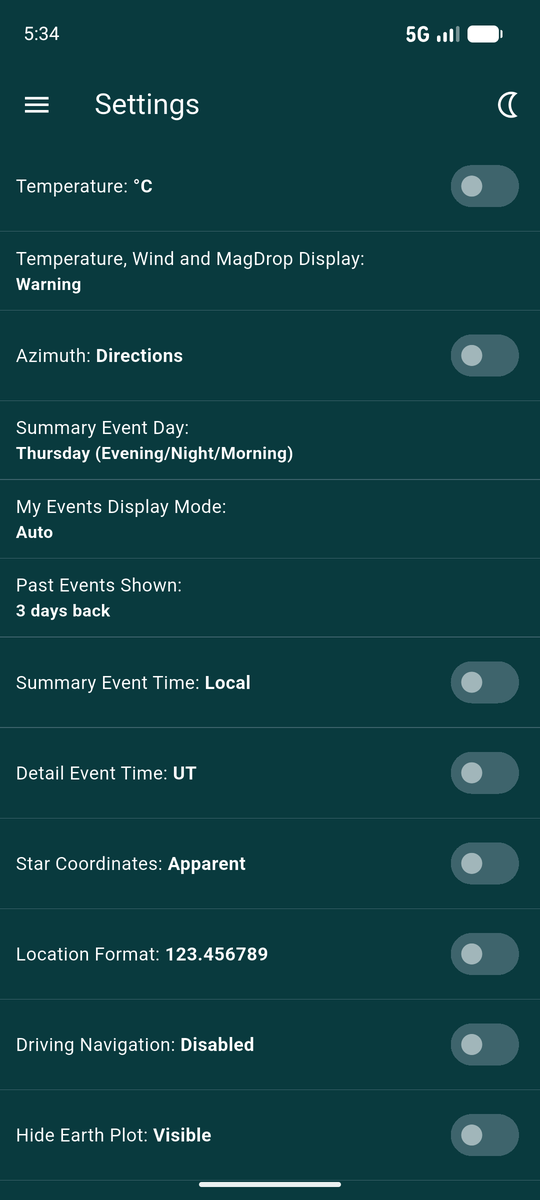
Temperature — °C or °F. Only affects how it is shown; the forecast itself is unchanged.
Azimuth — compass directions
(NW) or degrees (@315°), wherever a
star's direction is given.
Star Coordinates — apparent, or J2000. Choosing J2000 marks the coordinates on Event Detail so you cannot mistake which frame you are reading.
Location Format — decimal degrees, or degrees, minutes and seconds.
Times and dates
Summary Event Time and Detail Event Time switch between local time and UT independently — the lists in local time for planning, Event Detail in UT for recording, if that suits you.
Summary Event Day chooses how a date reads in the lists: the day with its part of night (Thursday Evening), the day with a shorter form of that, or the bare date.
What My Events shows
My Events Display Mode — Auto lets the app decide based on how many events you have, or you can force Group by Day, Past/Future Filter, or None for a plain chronological list.
Past Events Shown sets how far back the Show past events toggle reaches.
Temperature, Wind and MagDrop Display governs three badges at once. Warning shows them only when they are worth noticing — wind from moderate up, temperature below 9°C or above 29°C, and a magnitude drop under 1.0. Always shows them whenever there is data, and None hides them entirely. Cloud cover is unaffected either way.
Cloud Cover Info — Total shows the plain cloud icon; High/Mid/Low tints it with a blend showing where the cloud actually sits, high through low — see Icons and badges for what that looks like and when it is available.
Plots and maps
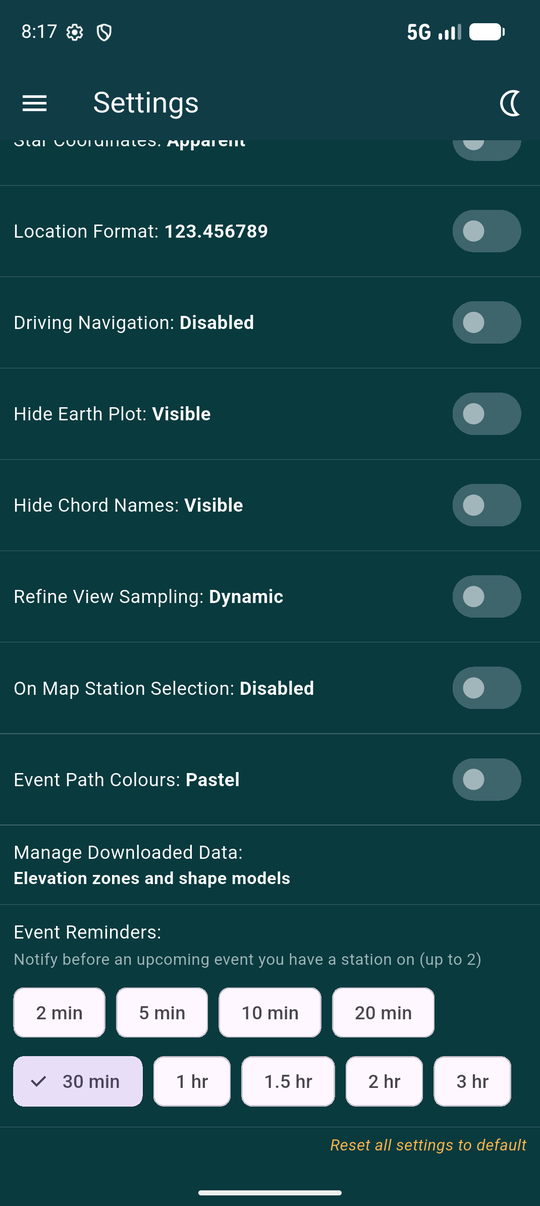
Hide Earth Plot removes the 3D globe from Search Events results. It is a web view, so hiding it makes that screen lighter on an older phone.
Hide Chord Names turns off the station names drawn along the chords on the path map.
Event Path Colours switches the shadow plot between a pastel palette and a higher-contrast one.
Driving Navigation adds the coordinates footer to Event Detail, which opens Google Maps, Navigation or Waze.
On Map Station Selection lets you announce a station by tapping one of your Saved Sites directly on the path map, when it is opened from a Search Events result you have not already got a station on. Off by default, since the ordinary route — the result tile's own Observe from… button — already covers the common case of a single Home Site.
Elevation data and reminders
Manage Downloaded Data opens the list of downloaded terrain zones and cached shape-model data — see the path map.
Event Reminders chooses up to two lead times for a notification before an event you have a station on. See Reminders.
Resetting
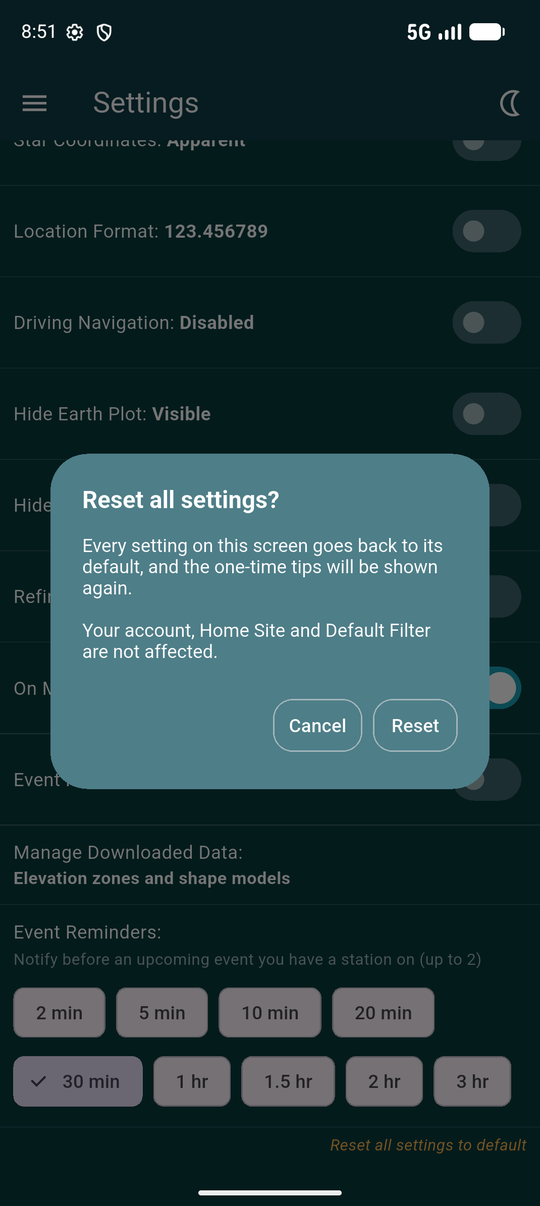
Reset all settings to default, at the very bottom, returns everything on this screen to how it shipped and re-arms the one-time tips, so hints you have already dismissed appear again.
It does not touch your account, your Home Site or your default filter, and it does not delete downloaded elevation zones or shape-model data.
One thing a reset cannot undo is the exact-alarm permission. Android only lets you grant or revoke that yourself, in the system settings — no app can do it on your behalf.
Test Mode
The Test Mode switch here writes a detailed log to the phone and adds a button to submit it. It exists for diagnosing a problem with someone's help; there is no reason to leave it on otherwise.
The switch stays hidden until it is unlocked — tapping the version number nine times on About OW Mobile, not on this screen. Once unlocked it stays visible here, including the switch to turn it off again.
Submitting error reports does not require it — that button appears by itself if the app has recorded a crash.