The screens
My Events
Every occultation you have announced a station for, nearest first.
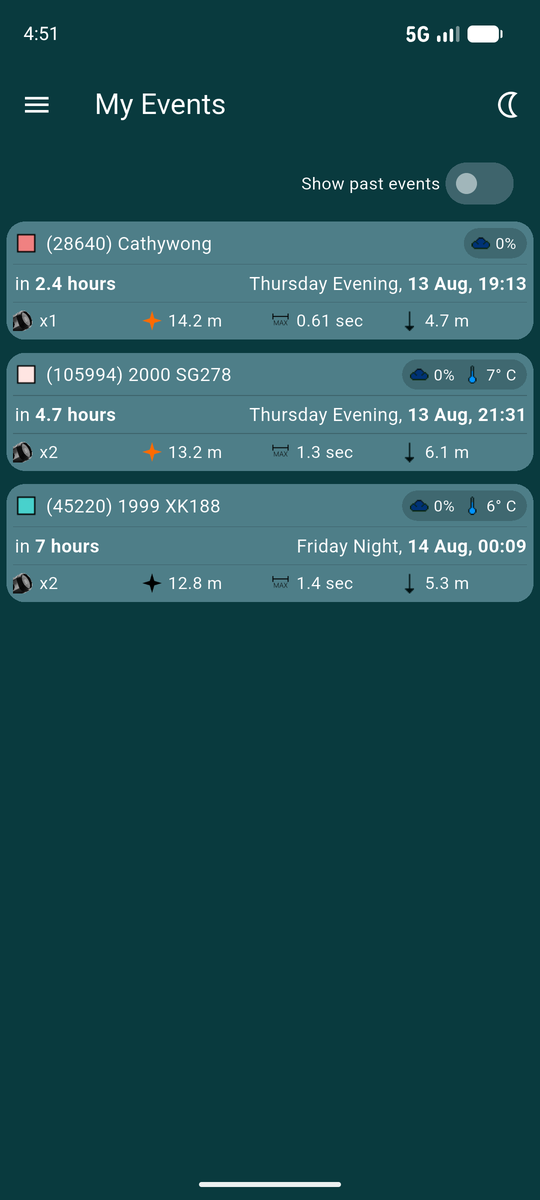
My Events lists the events your OWC account already has a station on, soonest first. It is not a search: nothing appears here until you have announced a station, either on the OWC website or from Search Events.
The list paints instantly from its saved copy, then refreshes quietly in the background if that copy has gone stale. Pull down to force a refresh at any time.
Reading a row
Each row packs a lot in. From the top left:
| What you see | What it means |
|---|---|
| Coloured square | Where your station falls relative to the predicted shadow. See Icons and badges for the colours. |
| Object name | The asteroid, with its catalogue number where it has one. |
| Weather badge | Cloud cover, and temperature and wind when they are worth flagging, forecast for your Home Site at event time. |
| Countdown | Time remaining, then the day, part of night, date and time. It ticks while you watch. |
| Telescope count | x2 means two stations are announced on this
event — including other observers', not just yours. |
| Star colour and magnitude | The target star's colour class and combined brightness during the occultation. |
| Maximum duration | The longest the event can last, at the centre line. |
| Magnitude drop | How far the combined brightness falls when the star is covered. A bigger drop is easier to see. |
| Shape model icon | Shown only when DAMIT or ISAM has a real 3D shape for this asteroid — see Icons and badges. Its absence just means no shape model exists for this one; most events have none. |
Press and hold any of these values for a short description of what it is. The same works on Event Detail and Search Events.
Events that have already happened
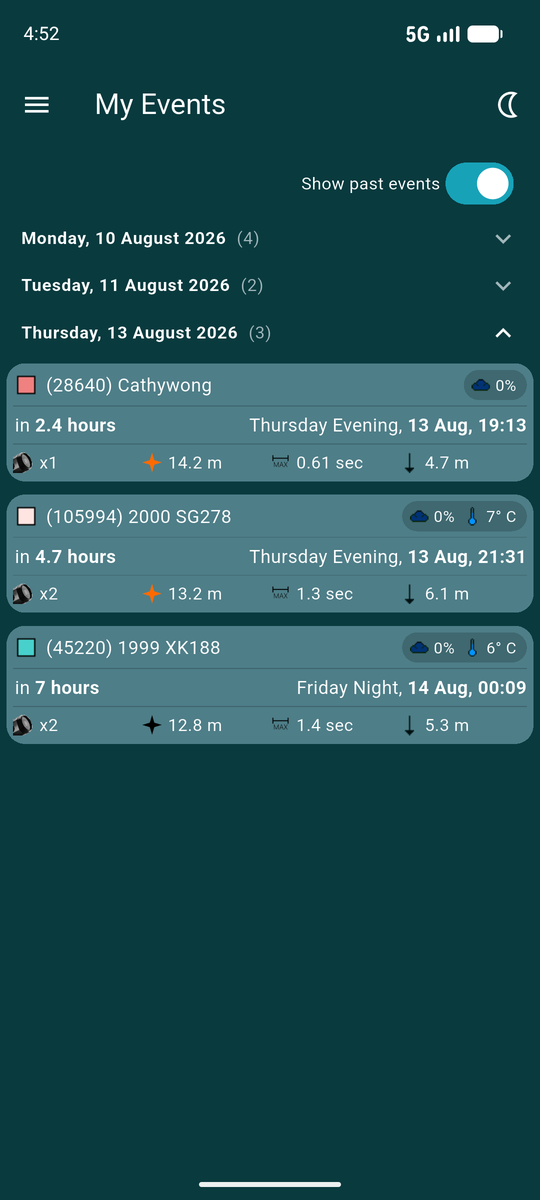
Show past events at the top of the screen brings back events that have already occurred. How far back is up to you — see Settings.
Once there are more events than fit comfortably, the app groups them under collapsible date headings, with a count beside each. Whether it does this is itself a setting.
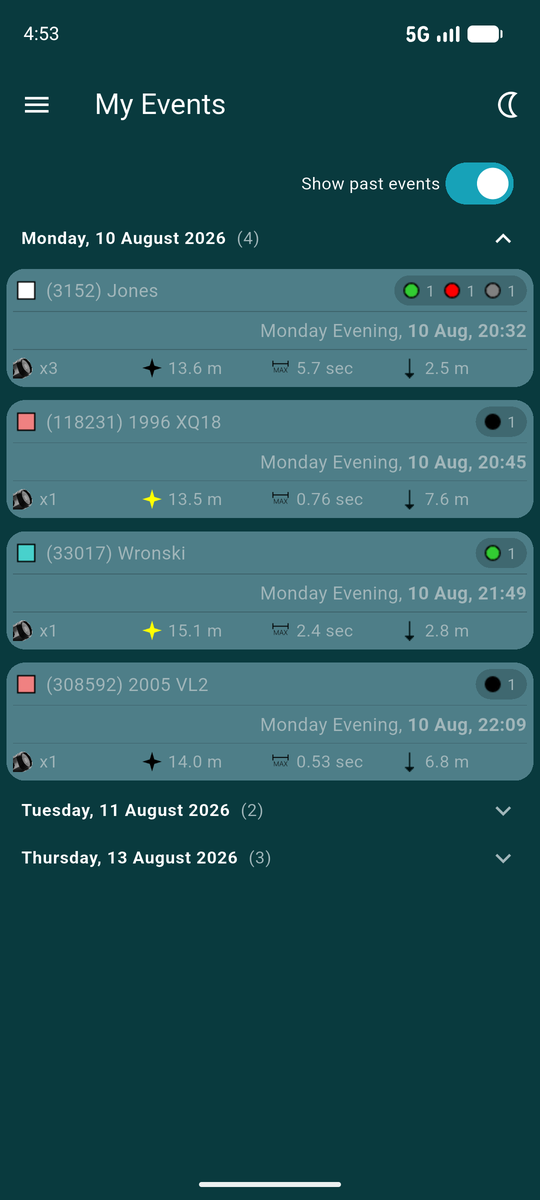
For a past event the weather forecast is no longer any use, so the badge is replaced by a summary of what was reported: a coloured circle per outcome with a count beside it.
The first row here has a green circle with 1, a red with 1 and a grey with 1 — one positive detection, one miss, and one station that has not reported yet.
Past rows are also dimmed, so a glance tells you which part of the list has already happened.
Opening an event
Tap any row for Event Detail — the shadow path, every announced station, the full prediction, and the button to report what you saw.