The screens
Event Detail
Everything known about one event, and the stations announced on it.
Event Detail is the screen you sit on during an observation. It opens from any row in My Events, and keeps the phone awake while it is showing.
The top of the screen
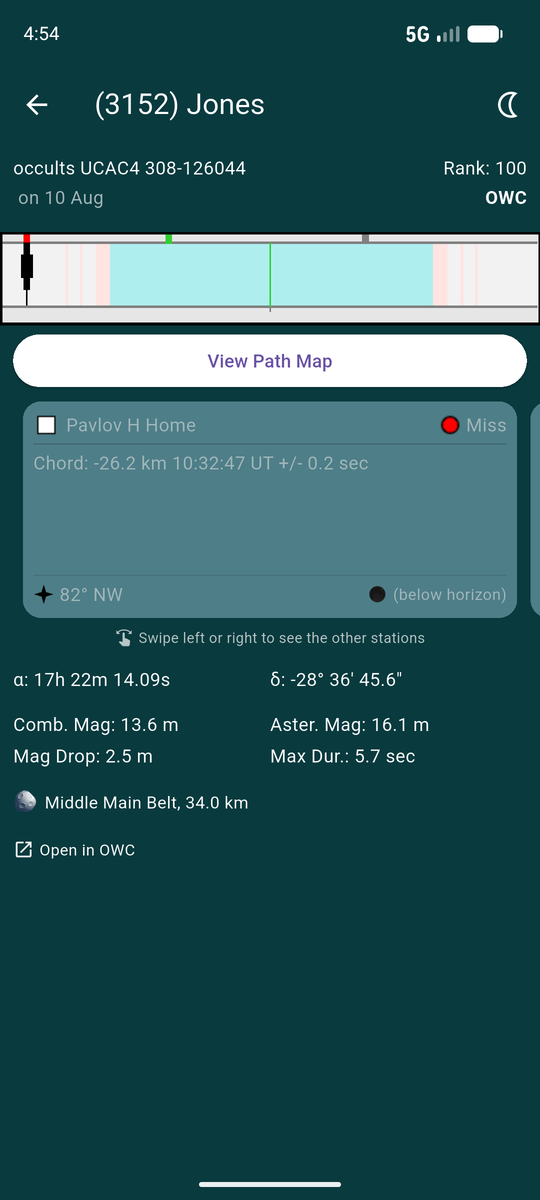
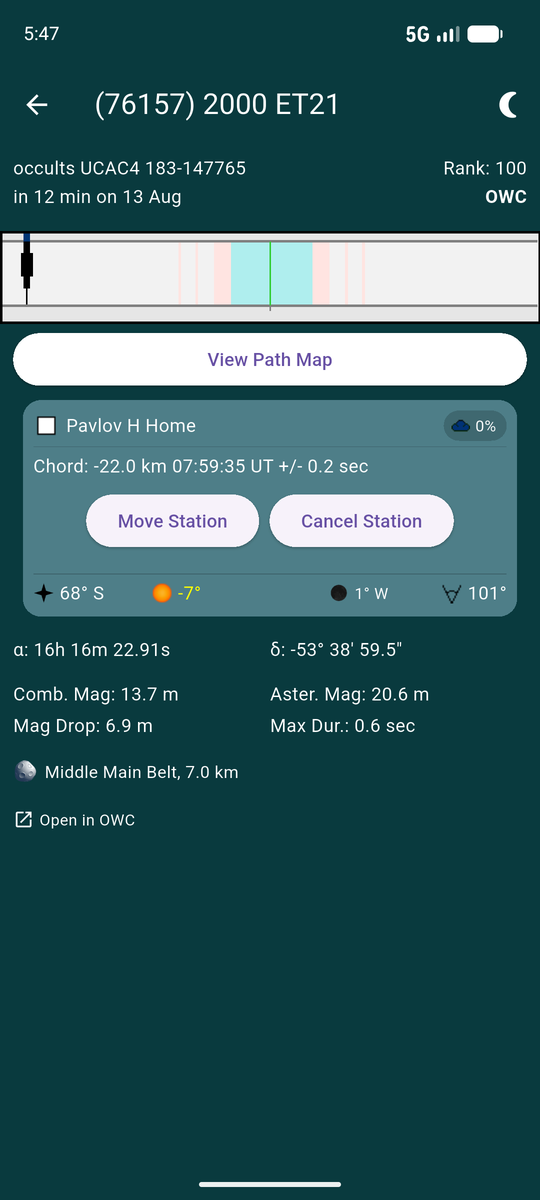
Under the title: which star the asteroid occults, the date, the event's rank, and the feed it came from.
Then the shadow path in cross-section — the pale band is the shadow itself, the wider tinted bands either side are the one-, two- and three-sigma uncertainty zones, and the green line down the middle is the centre line. Each announced station is a mark across it, positioned by how far its chord falls from centre.
View Path Map puts the same geometry on a real map — see the path map.
The station cards
Below the plot is one card per announced station — yours and other observers'. Swipe left and right to move between them; the selected station is the one flagged on the plot above.
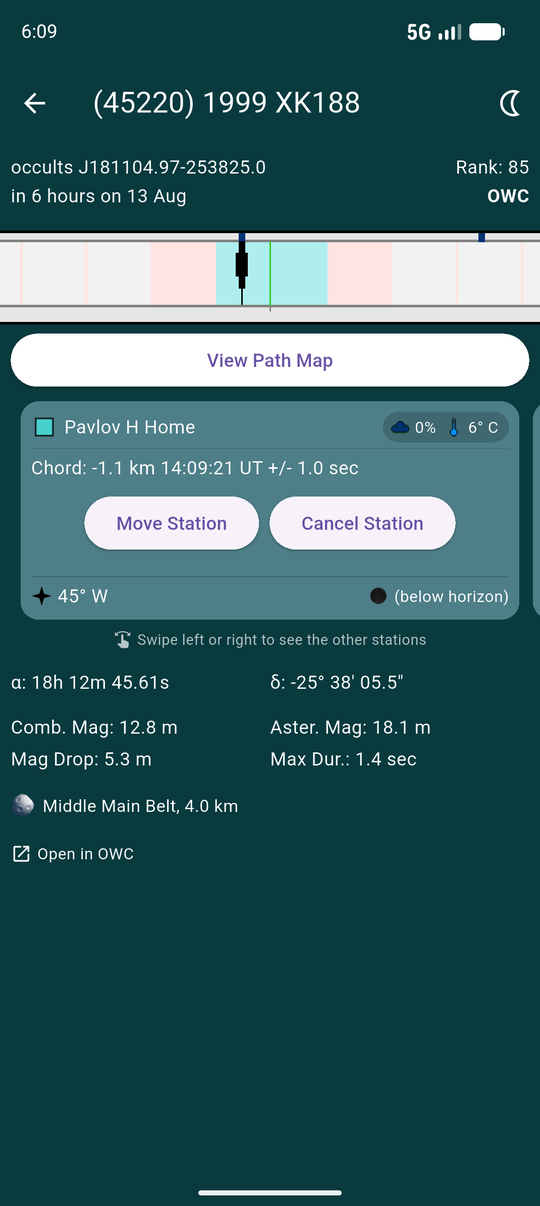
Each card gives the station's name, its chord offset from the centre line, the predicted time at that station with its uncertainty, and the star's altitude and direction as seen from there.
What else appears depends on whether the event has happened yet. Before it does, you get a weather badge and the buttons to Move Station or Cancel Station. Afterwards, those give way to the reported outcome — or, on your own station, the button to report one.
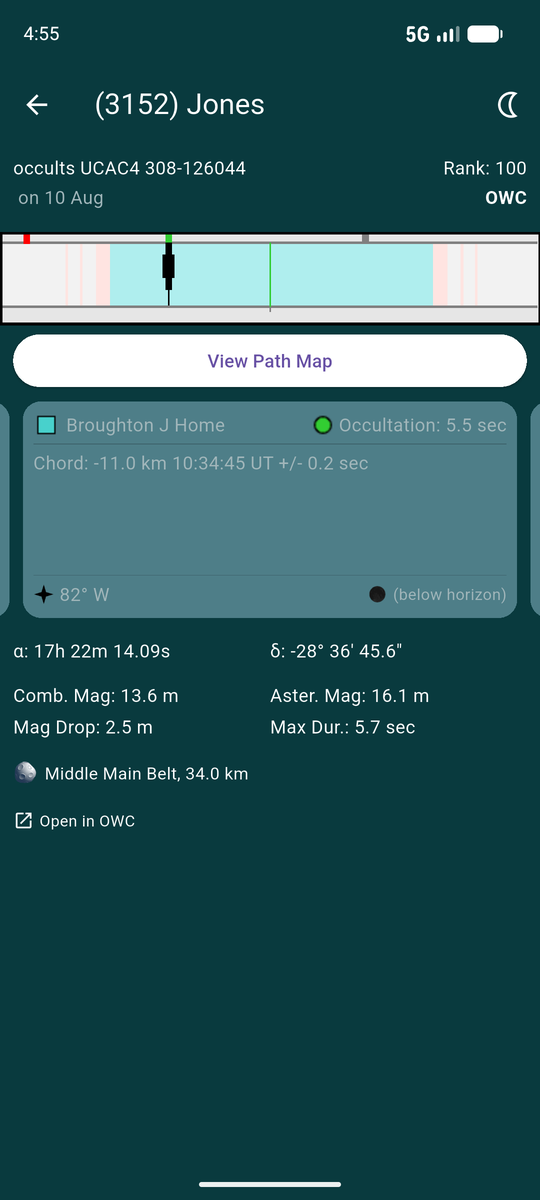
Other observers' cards work the same way, minus the buttons — you can see where they are on the path, and once the event has passed, what they reported.
A positive detection carries the measured duration with it, so a card reading Occultation: 5.5 sec is someone else's chord length, not a prediction.
Moving a station
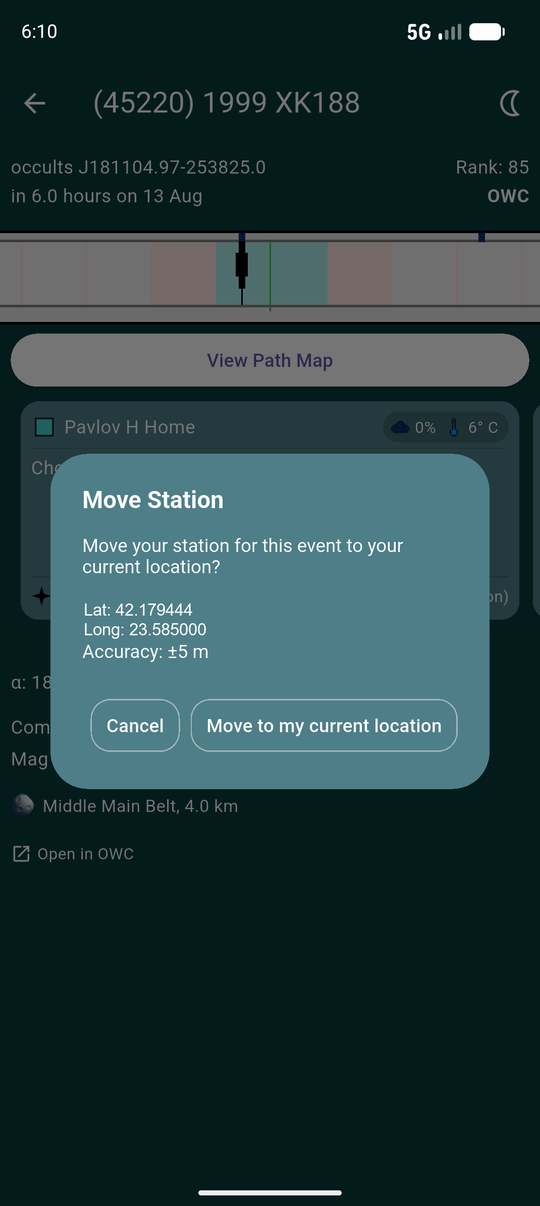
Move Station takes a GPS fix and offers to move your station to where the phone is now. It shows the coordinates and the accuracy before committing, so you can see whether the fix is good enough to accept.
Useful when you have driven to a different spot than the one you announced from.
Cancelling a station
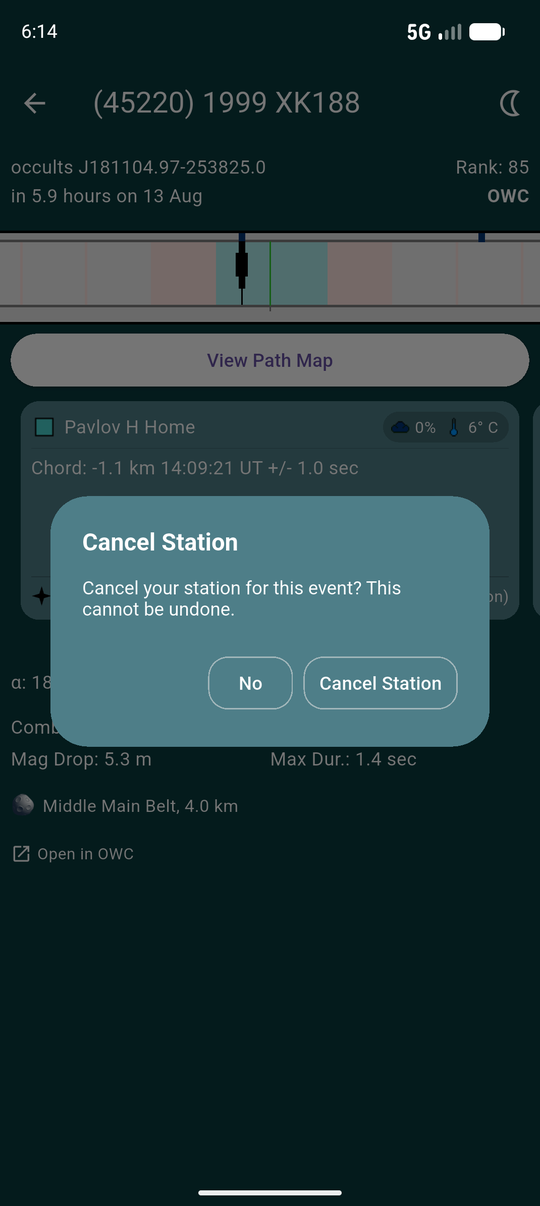
Cancel Station withdraws your station from the event on OWC. It asks first, and says plainly that it cannot be undone.
If it was your only station on that event, the app returns you to My Events, since there is nothing of yours left to show.
The prediction
Under the cards, the numbers for the event as a whole: the star's right ascension and declination, its colour index and stellar diameter, the combined and asteroid magnitudes, the magnitude drop, the maximum duration, the asteroid's rotation period and amplitude, and its dynamical class and diameter.
Whether coordinates read as apparent or J2000, and whether times are local or UT, are both settings.
Night mode
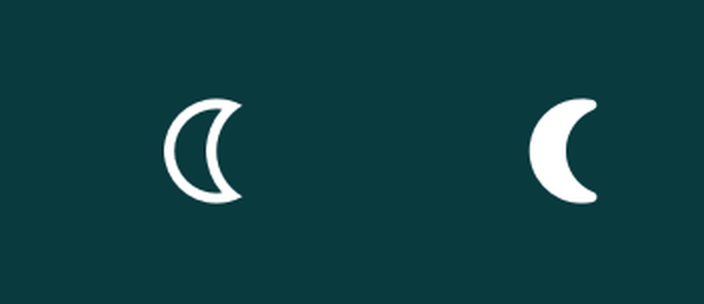
The moon icon in the title bar dims the screen well below the normal minimum, so a phone does not wreck your dark adaptation mid-observation. It stays on until you turn it off, across screens and sessions.
The icon is outlined when off and filled when on. The screen itself changes brightness — which is why the two states look identical in a screenshot, and only the icon differs.
If your station's coordinates are worth having to hand, turn on Driving Navigation in Settings. A footer then shows the latitude and longitude, and tapping it offers to open Google Maps, Navigation or Waze.