The screens
The path map
The shadow path drawn on a real map, corrected for terrain.
The path map draws the same shadow geometry as the flat plot, but on real ground — so you can see which roads, ridges and clearings the path actually crosses. Open it with View Path Map on Event Detail, or by tapping the globe or plot on a Search Events result.
What the lines mean
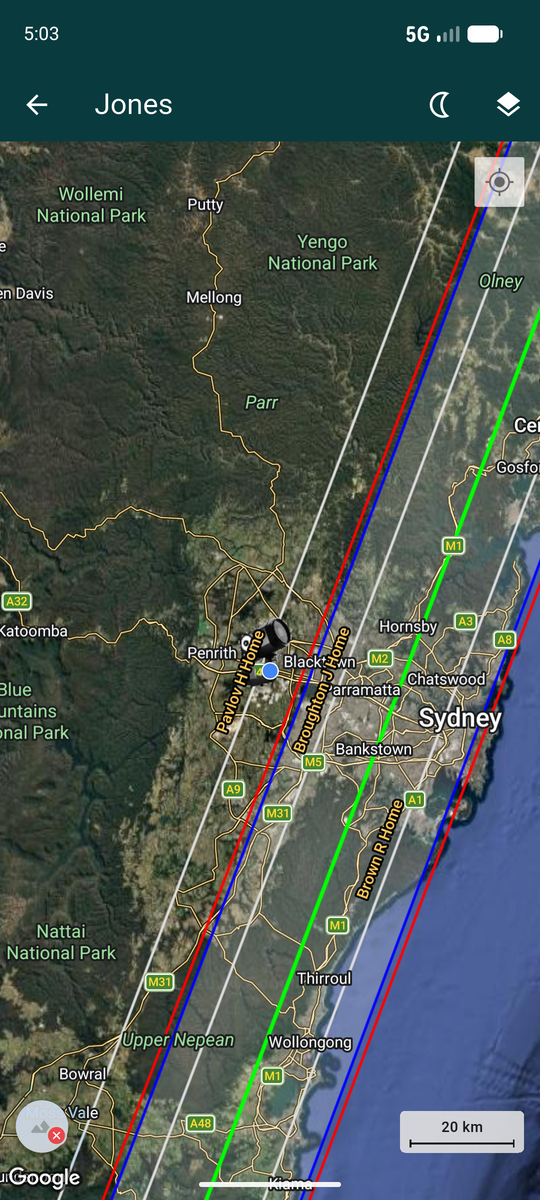
The green line is the centre line. The two blue lines are the shadow edges, with the band between them shaded. The red lines are the uncertainty limits — the path could plausibly fall anywhere between them.
The grey lines are announced stations, each drawn as the chord that observer will see, with their station name written along it.
The telescope marker is a station's actual position. The blue dot, as everywhere, is you.
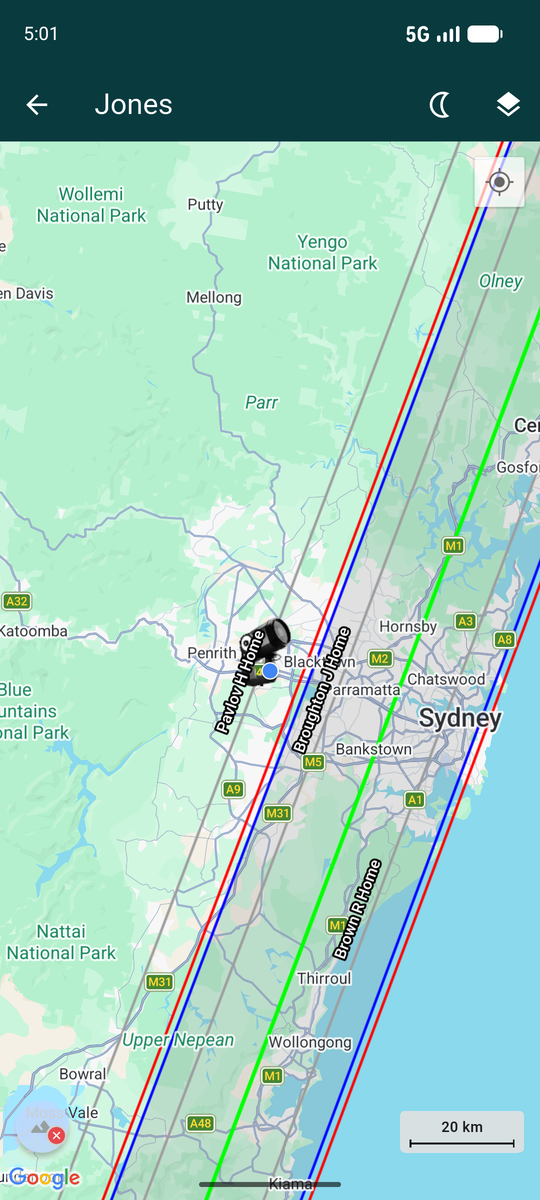
The station names follow the chords as you pan, staying in view rather than scrolling off with the line. If you would rather not have them, Hide Chord Names in Settings turns them off.
Shape models
For some asteroids the real shape is known — from the DAMIT and ISAM databases, built from lightcurve, spacecraft or radar data. When one exists, the map draws the asteroid's actual silhouette on the ground instead of leaving you to imagine it from the band alone: a real footprint, not a generic oval.
The badge above the silhouette names the source and model —
DAMIT 6114, say, or ISAM 1046-1. A long
press on it shows the model's quality; most published models are
the best-determined grade, but not all.
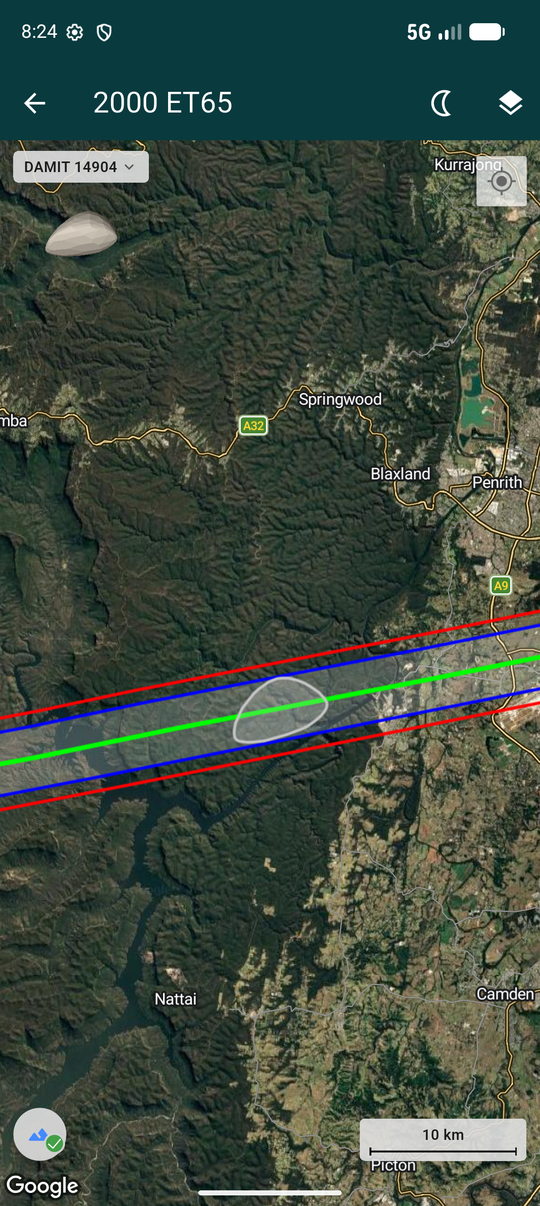
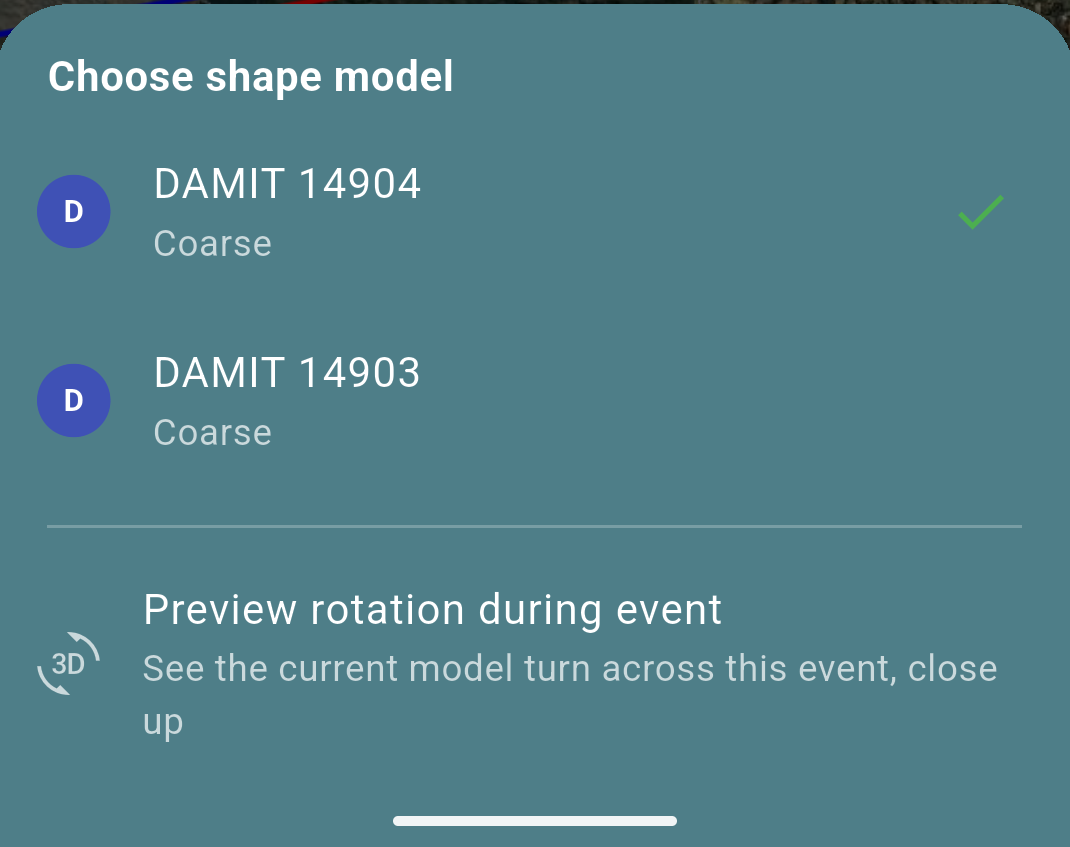
Tap the badge, or the footprint itself, to see more. Most asteroids have exactly one model, so this jumps straight to the rotation preview below. Where several exist — different pole solutions, or a radar shape alongside a lightcurve one — a chevron on the badge hints there is a choice, and tapping opens Choose shape model first.
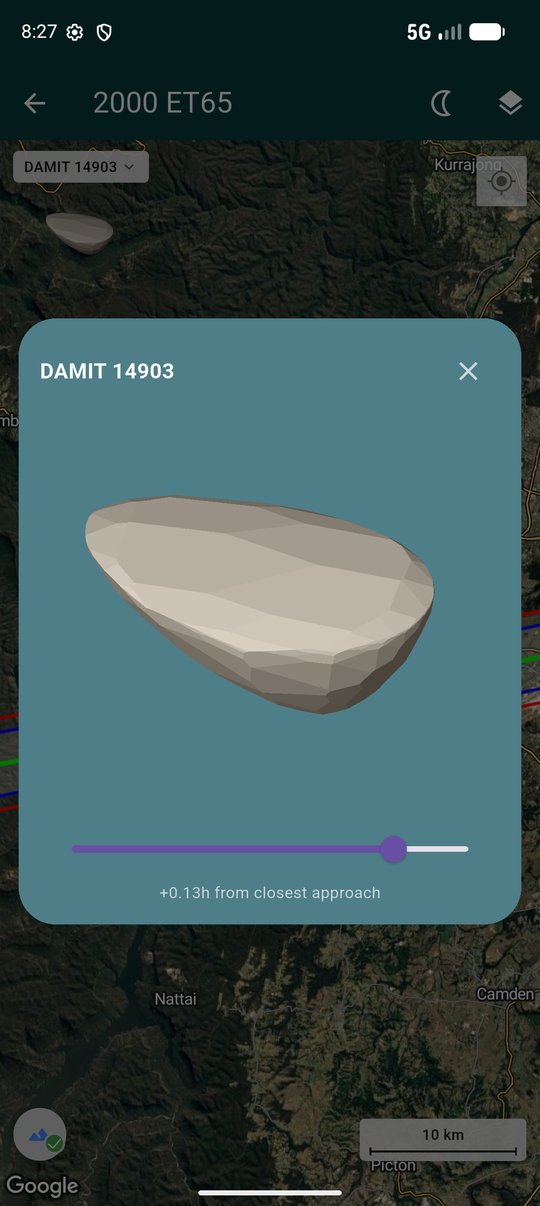
Preview rotation during event opens a larger, shaded view of the body. A slider lets you scrub through its attitude across the event's own timing — from before to after closest approach — so you can see how the body's own rotation, not just the ground track, shapes the chord you would actually time.
Most events have no shape model at all — DAMIT and ISAM between them cover a fraction of the asteroids that get occultation events. For those the map still draws a plain outline sized to the predicted shadow, just with no badge and nothing to tap. That is normal, not a sign that anything failed to load.
Location permission
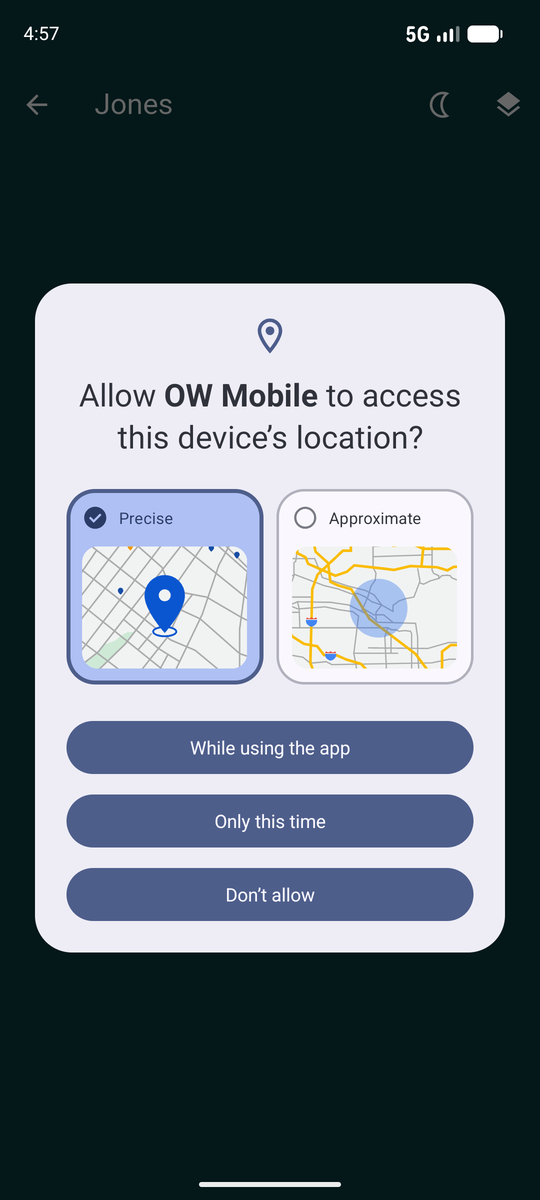
The first time you open the map, Android asks for location access. It is used to show where you are relative to the path, and to offer to move a station to your current position.
Declining is fine — the map still draws the path, you just do not appear on it.
Map layers
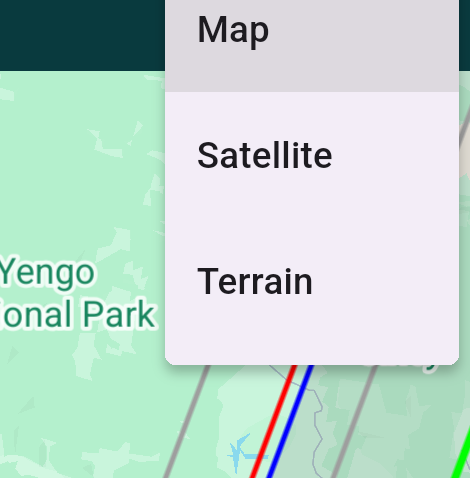
The layers button offers Map, Satellite and Terrain. Satellite is usually the most useful for judging a site: you can see tree cover, clearings and whether a promising-looking road is actually a track.
Your choice is remembered for the next map you open.
Terrain correction
A shadow path is computed for a smooth Earth. The real ground is not smooth, and over mountains the difference is large enough to matter — a ridge a kilometre high shifts where the shadow edge actually falls.
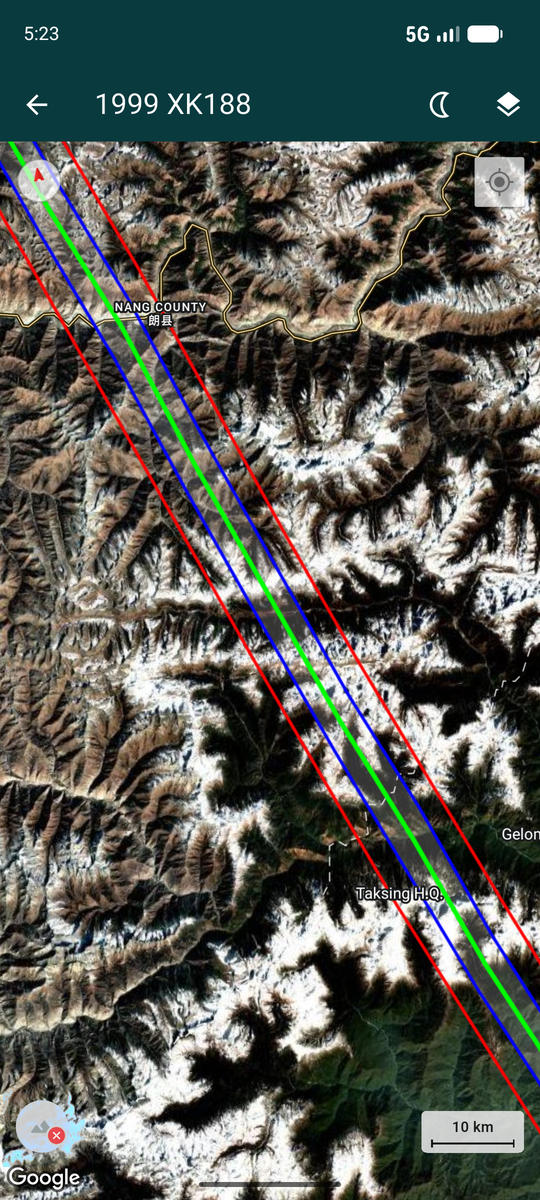
The app corrects for this, but the fine correction needs real elevation data for the area, which is downloaded on demand.
The terrain icon at the bottom left tells you where you stand. A small mark on the icon itself says which: a red cross means fine data is available for this area but not yet downloaded (the icon itself is grey); a green tick means the correction is applied to what you are looking at (the icon itself is blue).
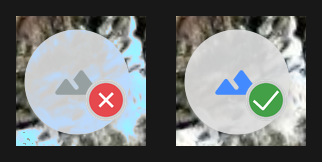
- Zoom to the stretch of path you care about, until the terrain icon shows the red cross.
- Tap it. The app tells you which zone it needs and how large the download is.
- Accept. It downloads and applies itself — no need to tap anything else.
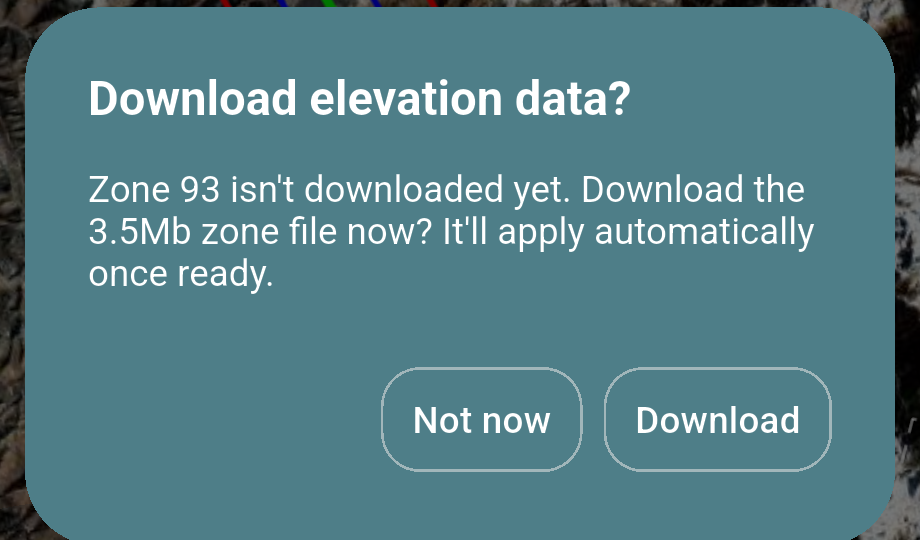
The result is worth the wait in country like this. The lines bend and kink as they cross each ridge and valley, because that is where the shadow edge genuinely falls.
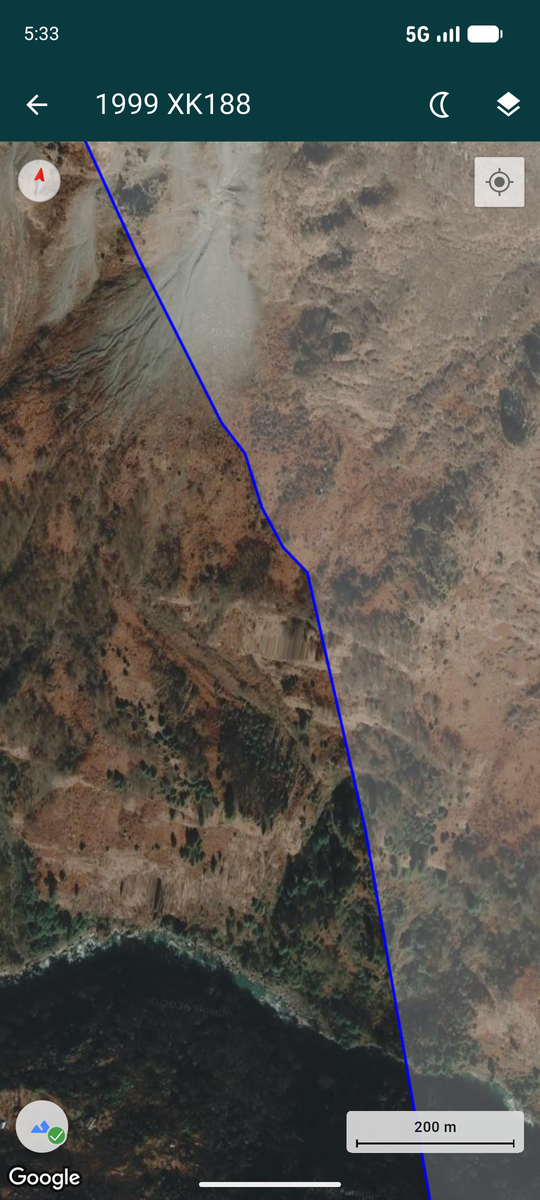
Zoom further and the correction resolves into individual terrain features — the line steps across each gully.
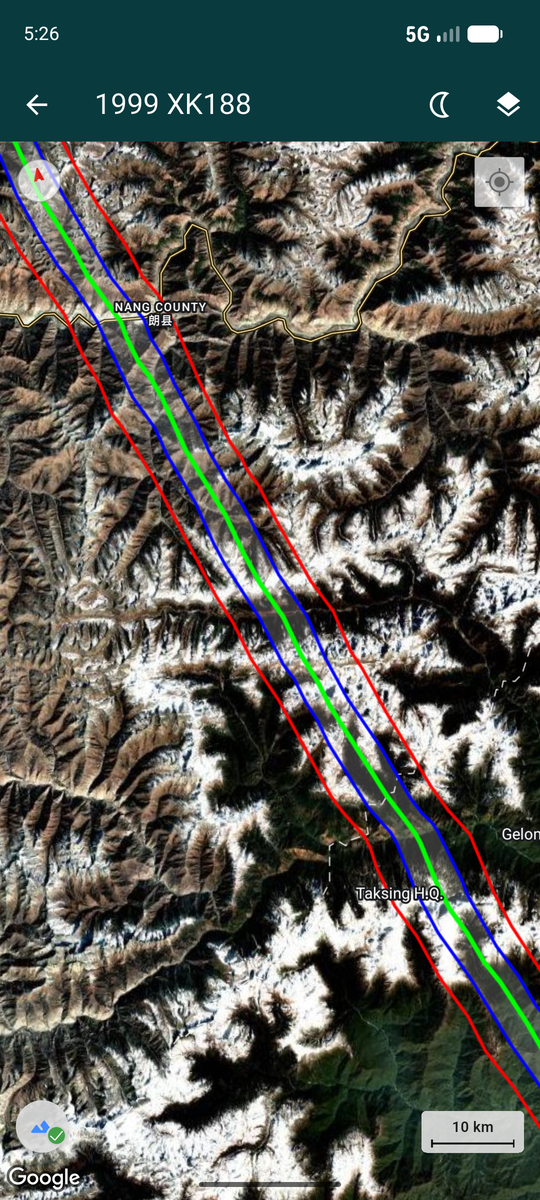
How far the lines move depends entirely on the terrain underneath and the altitude of the star. A kilometre of relief can shift the shadow edge by a similar order — enough, here, to change whether a site well outside the naive straight-line path is actually inside it.
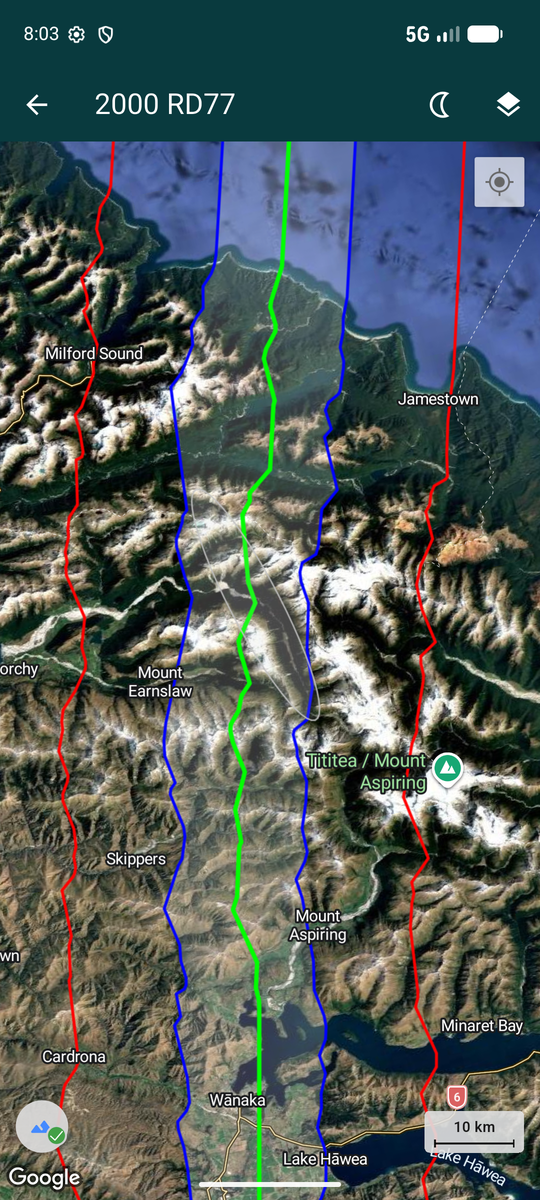
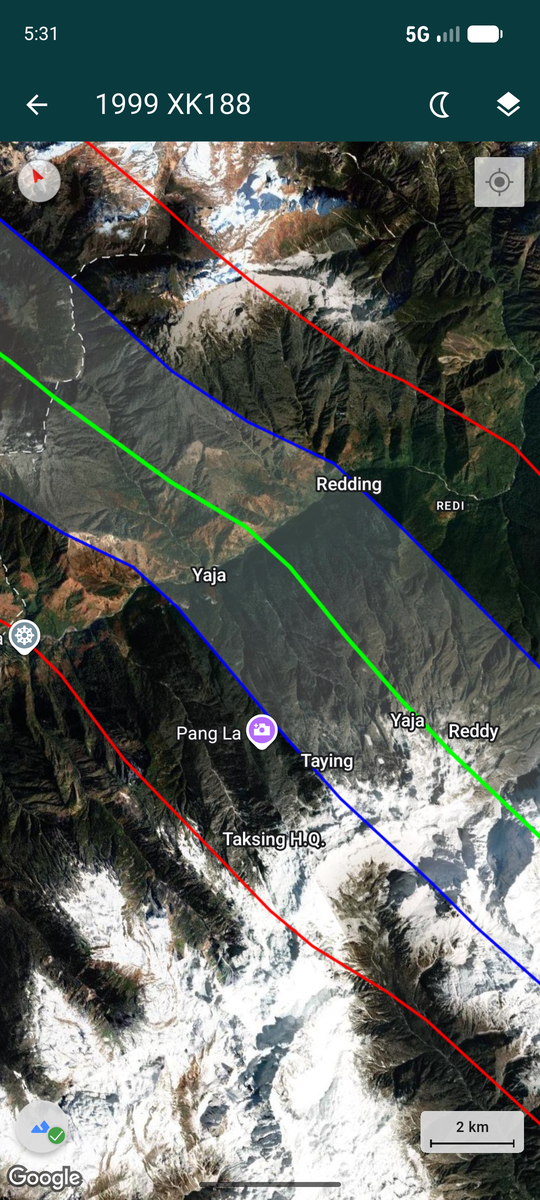
Corrections are applied to the part of the path you are looking at. Pan somewhere new within the downloaded zone and it follows; move outside it and the icon turns orange again, offering the next zone.
A one-time bubble points this out the first time fine data is available, and stops appearing once you have downloaded a zone.
Zoom right in and the correction resolves into individual features — the line steps across each gully and ridge, because that is where the shadow edge genuinely lands on the ground.
This is the level of detail that decides whether a particular roadside pull-off is inside the path or just outside it.
Announcing a station from the map
Opened from a Search Events result you have not already announced a station for, the map can double as a way to pick a site: each of your Saved Sites is drawn as a tappable telescope marker, and tapping one announces a station there — no need to go back to the result tile.
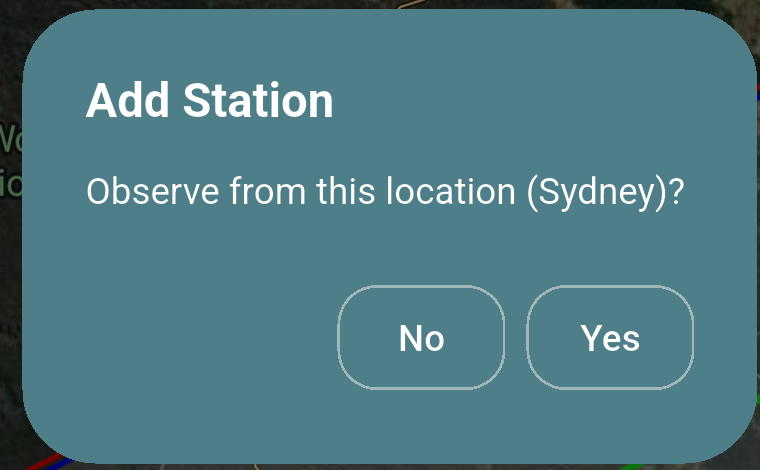
This is off by default. On Map Station Selection in Settings turns it on — the ordinary route, the result tile's own Observe from… button, already covers observing from your single Home Site.
Managing downloaded zones and shape models
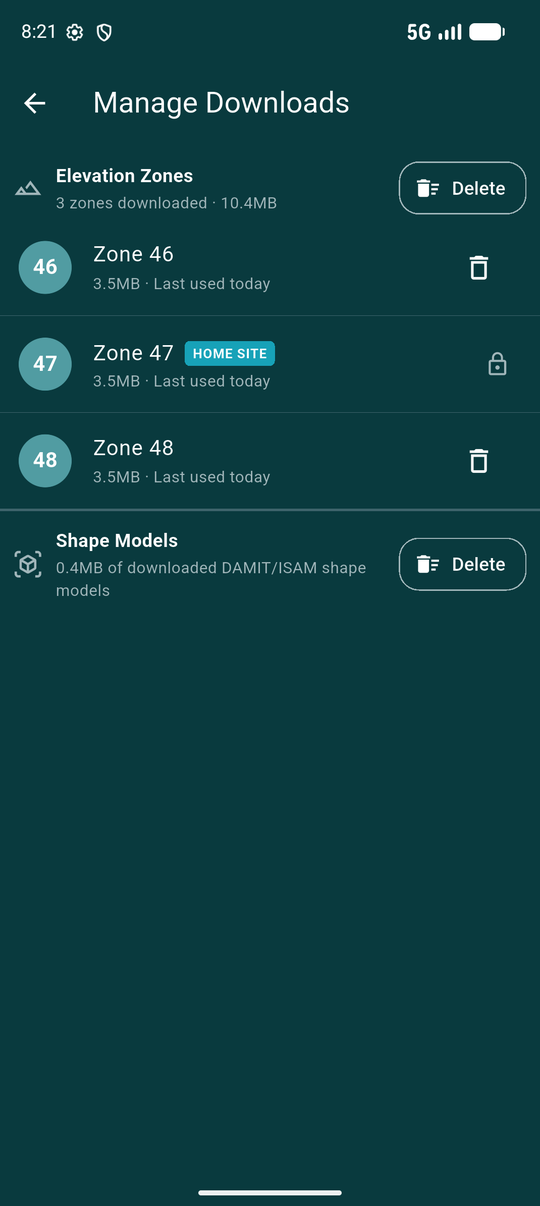
Zones stay on the phone so the correction is instant next time, and so it works with no signal in the field. Downloaded shape models are kept the same way, so a previously-viewed silhouette does not need refetching. Manage Downloaded Data in Settings lists both and what each is costing you in storage.
The zone covering your Home Site carries a padlock instead of a bin: it cannot be deleted, on the grounds that it is the area you are most likely to need. Shape models have no equivalent per-item list — just one total size and a single Delete for all of them.
Both are cleaned up automatically once old and unused enough, the same way, independently of each other.
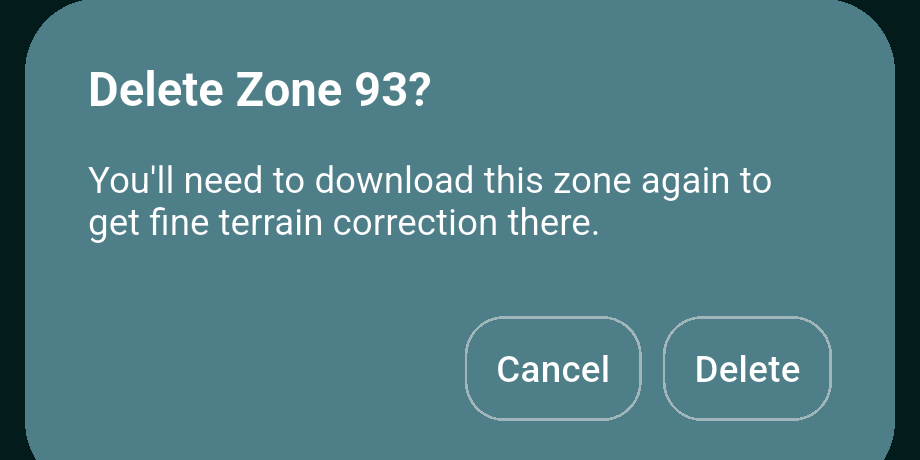
Deleting either loses nothing but the download. The path is still drawn, still corrected coarsely, shape footprints still show where DAMIT or ISAM has one, and anything deleted can be fetched again whenever you need it.