Getting started
Setting up your account
Sign in with the OccultWatcher Cloud account you already use on the website.
OW Mobile does not have accounts of its own. It signs in to the OccultWatcher Cloud account you already use on the website, and works with the stations and filters you have there.
Signing in
The app opens on the Account screen until an account is configured. Enter the email address and password you use on cloud.occultwatcher.net and tap Set Account.
If you have forgotten your password, Reset Password opens the OWC website, where the reset actually happens — the app cannot change it for you.
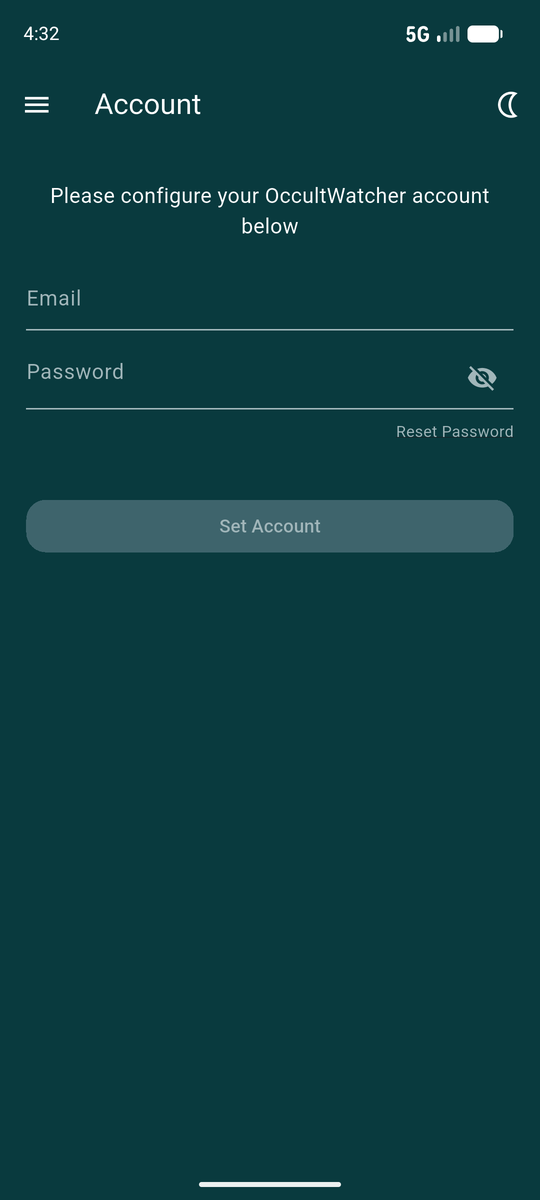
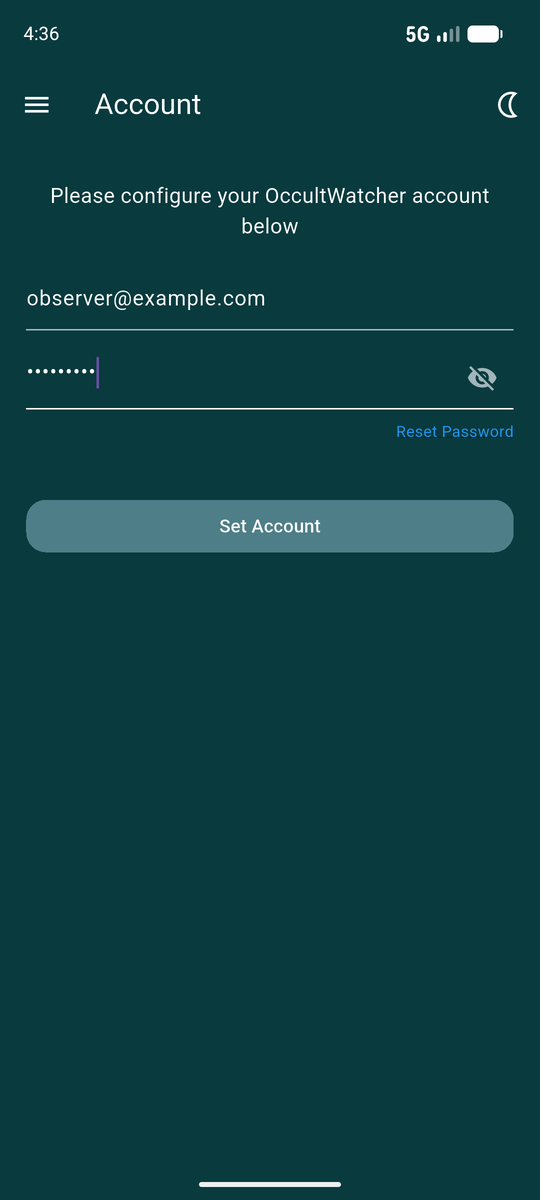
The password stays hidden as you type. The eye icon reveals it if you need to check it before submitting.
Your credentials are stored in the device's own secure storage, not in ordinary app settings, and are sent only to OWC.
After signing in
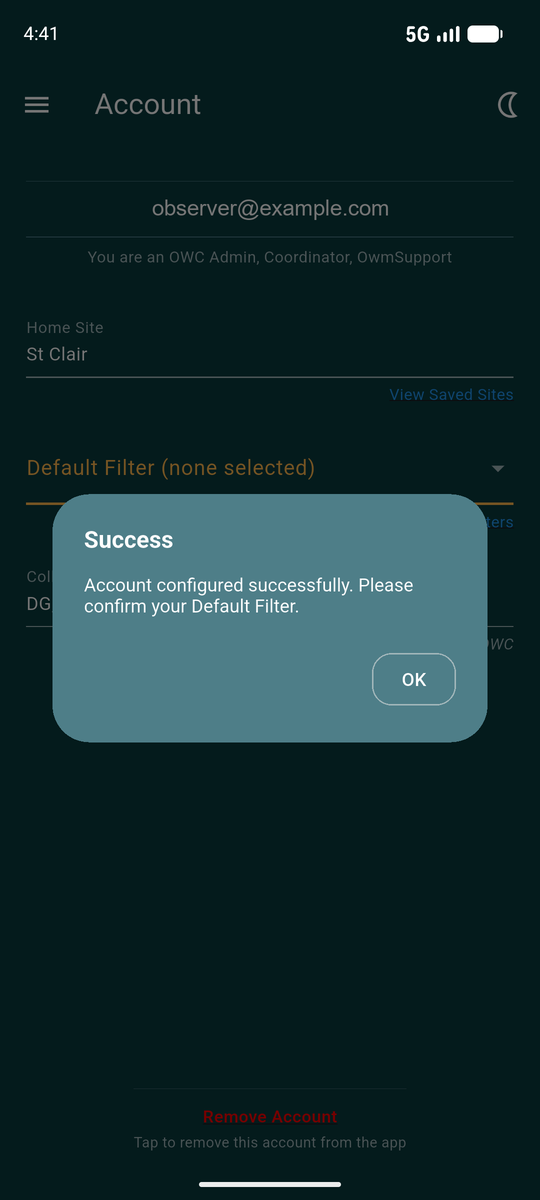
A confirmation appears, and it asks you to confirm your Default Filter. That is not optional housekeeping — Search Events cannot run without one, so it is worth doing straight away. See Choosing a default filter.
The screen then shows what OWC knows about you: your Home Site, your default filter, your roles, and any collaborators.
Getting around
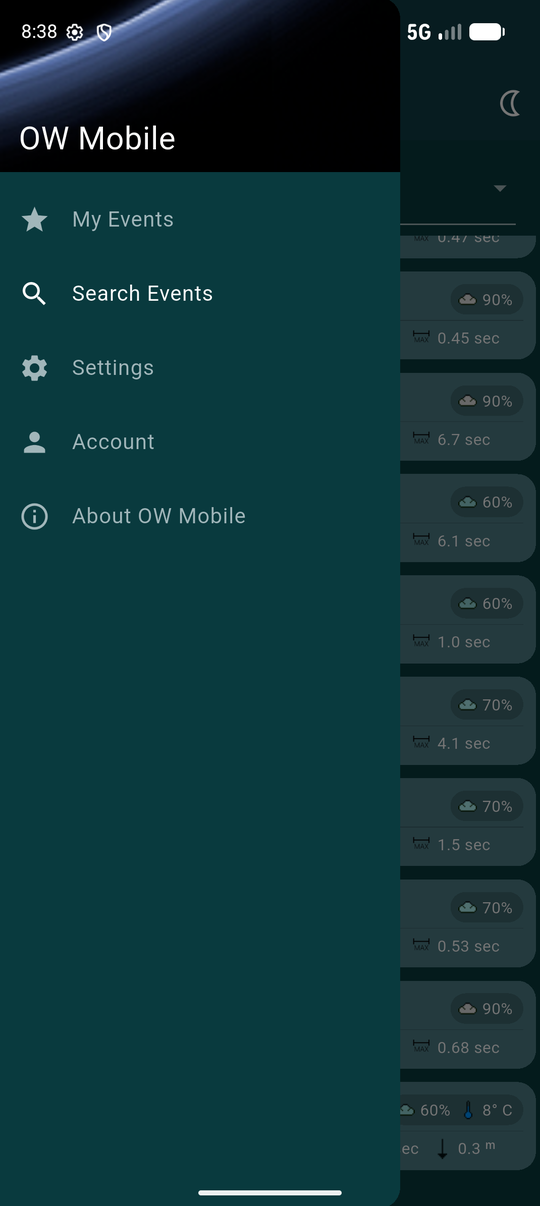
The menu button at the top left opens the drawer, which is how you move between the five screens: My Events, Search Events, Settings, Account and About OW Mobile.
The app opens on My Events once an account is configured, and on Account until then.
Pull down on the Account screen to re-read everything from OWC. Worth doing if you have just changed something on the website and the app has not caught up.
Removing the account
Remove Account at the bottom of the screen signs you out on this device: it forgets your credentials and clears the data cached on the phone.
It does not delete anything from OccultWatcher Cloud. Your account, your stations and your reported observations are all untouched, and signing back in restores everything.